Import & Export
In the settings panel, you will find functionality to import and export podcasts. This feature lets you import your saved podcasts from other apps, e.g. Pocket Casts. Similarly, you can also export your podcasts from PodNotes to such apps.
Importing
To import podcasts, follow these steps:
- Go to the PodNotes settings in Obsidian.
- Find the "Import" section.
- Click the "Import OPML" button.
- A file selection dialog will open. Choose your OPML file.
- The selected podcasts will be imported into PodNotes.
Exporting
You can export your saved feeds to opml format.
First designate a file path to save to (or use the default), and click Export.
Settings & templates
Under the Settings & templates heading, you can move your PodNotes configuration between vaults or back it up. This covers your preferences, note/timestamp/transcript templates, file paths, saved feeds, and playlists.
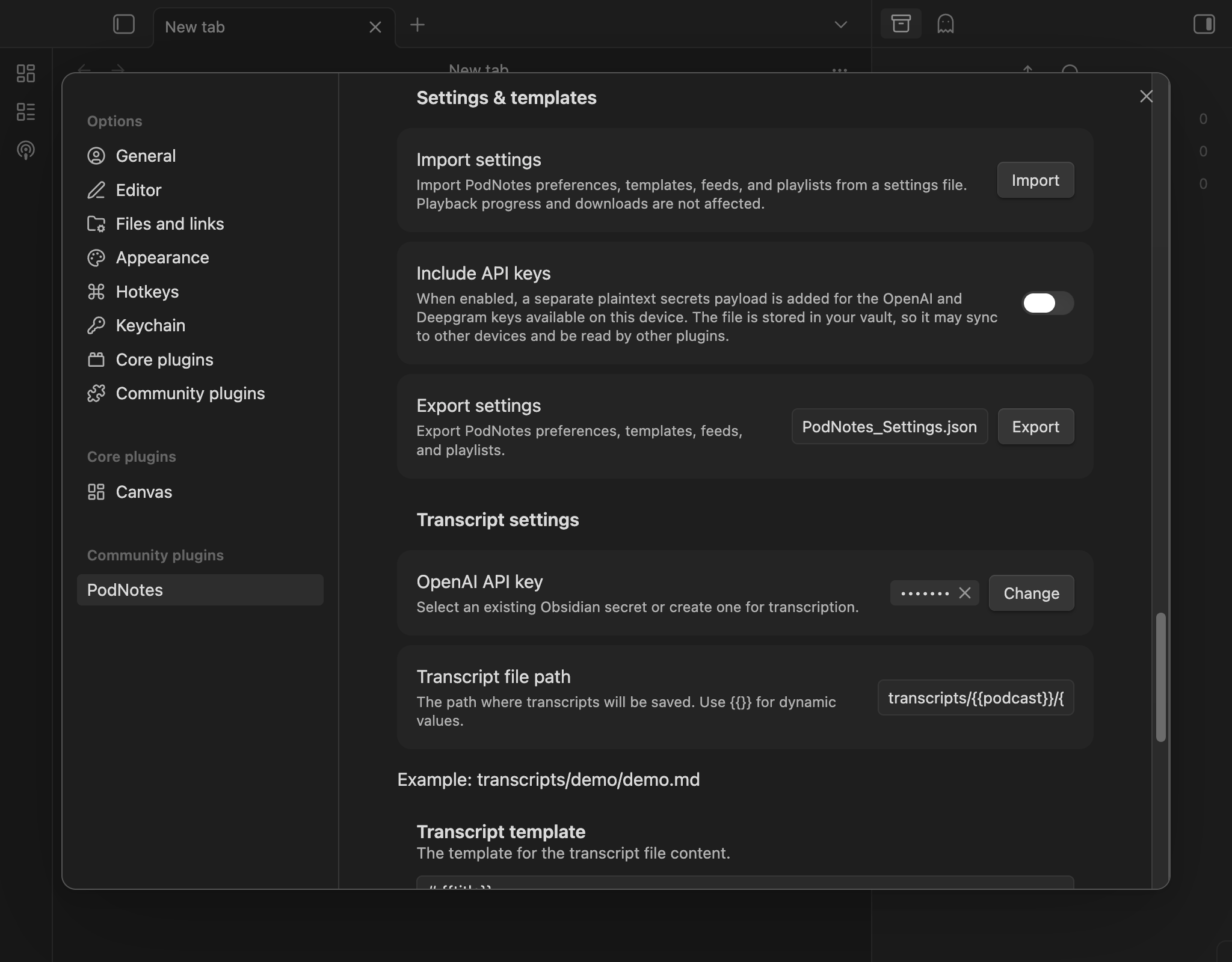
Playback progress, downloaded-episode bookkeeping, the currently playing episode, and the episode-to-note mapping are not included, because they are specific to a single vault.
PodNotes settings exports use format v2. API key values and the names of the Obsidian secrets selected in PodNotes are omitted by default. This keeps a destination vault's existing OpenAI and Deepgram selections unchanged when you import the file.
Exporting settings
- Leave Include API keys off for a normal settings export. To transfer the OpenAI and Deepgram keys that are available on this device, enable it explicitly.
- Set a file name (or keep the default
PodNotes_Settings.json). - Click Export. The settings file is written to your vault.
When Include API keys is enabled, available values are added in plaintext
under a separate top-level secrets payload:
{
  "type": "podnotes-settings",
  "version": 2,
  "settings": {},
  "secrets": {
    "openAI": "your OpenAI API key",
    "deepgram": "your Deepgram API key"
  }
}
Only configured keys are included. If a selected secret name exists in PodNotes settings but its value is unavailable on this device, the export stops instead of silently creating an incomplete credential backup. Open Transcript settings, select or create the missing secret on this device, and export again.
An export containing secrets is sensitive. The values are plaintext in a file
inside your vault, where they may sync to other devices or be read by other
plugins. Keep the file private and delete it when it is no longer needed.
Importing settings
- Click Import next to Import settings and choose a settings file.
PodNotes accepts current v2 exports, legacy v1 exports, and a raw PodNotes
data.json. - Confirm the import. Your current preferences, templates, feeds, and playlists are replaced with the imported values; playback progress and downloads are kept.
An import without API key values preserves the OpenAI and Deepgram secret names
already selected in the destination vault. For a legacy v1 export or raw
data.json, PodNotes recognizes the old plaintext openAIApiKey and
diarizationApiKey fields and imports them as secrets instead of putting them
back into plugin settings.
When an import contains API keys, the confirmation names the affected providers. PodNotes stores each value under a PodNotes-owned name in Obsidian's vault-local secret storage, then updates PodNotes to reference it. Existing Obsidian secrets are never overwritten. If a PodNotes-owned name already holds a different value, the imported key is stored under a new suffixed name.
Imported secret values are available only in the current vault on the current device. Repeat the import or select/create the appropriate secrets separately on another device.
A file exported by a newer version of PodNotes is rejected until you update the plugin. If an episode is already open when you import, a changed default playback rate applies to the next episode you open.